Manual
Getting Started
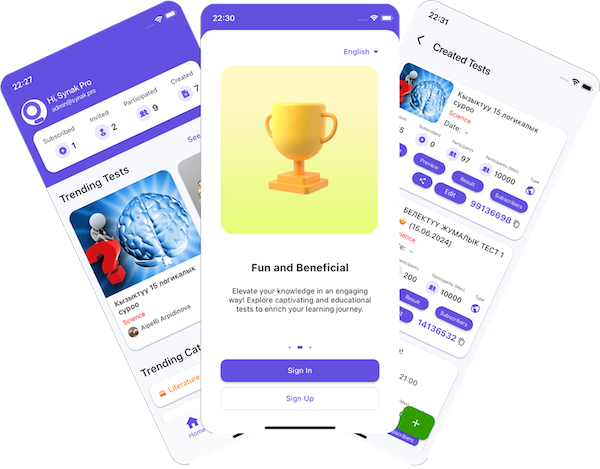
The bottom navigation has three tabs: Home, for tests you've created or been invited to; Join, where you enter a test's code; and Library, showing your Created and Invited tests along with their results. Tap the + button on the Created tab any time you're ready to make a new test.
You can create an account with your phone number or email, or sign in with Google or Apple. Once signed in, keep your profile information up to date from the Profile tab - some test creators may ask for details like your name or region when you join their tests.
For Creators
From the Created tab, tap + to start a new test. Add your questions, choose how participants can access it (private invite, code, or paid), set a participant limit, and publish. You can edit most settings later as long as the test hasn't started.
For serious or academic tests, you can require camera recording - either for specific questions, or for a total number of seconds across the whole exam if it's a timed test. Participants must keep their camera and microphone on while recording is active, and you can review every recording afterward from the test's results page. Video recordings are saved on the server for just a month. Camera recording adds to the cost of publishing your test.
Every test is entered with its code, but the type controls who's allowed to use it: Private (invite-only, by user or group), Access with code (anyone with the code), or Paid (anyone who pays your set fee). You can give the whole test one timer or a separate limit per question, shuffle questions and answers, and invite participants individually or by group. Live mode runs everyone through the test together in real time, but turns off camera recording, shuffling, and per-question skipping since they don't apply to a shared session.
For Participants
If you have a test's code, enter it from the Join tab. If it's a public test you don't have a code for, search for it by name. If you've been invited to a private test, find it under Invited in your Library.
Some tests require camera recording for academic integrity. If prompted, keep your camera and microphone on and stay visible in frame for the whole test - the creator can review the recording afterward, and leaving the frame or turning off your camera may invalidate your result.
After you finish a test, your score and detailed results are available from the Library tab under the test you took. If the creator enabled camera recording, you may also be able to review your own recorded clips there.